masstin started as a command-line tool and still is one. But not everyone who has to look at evidence lives in a terminal, and even those who do are glad not to have to remember the parameters on a Friday afternoon.
From the viewer you can do the whole run: evidence, timeline and graph.
Getting started
Run masstin with no arguments, or double-click the executable. You get a welcome screen with a zone to drop things on, buttons to open a timeline or ingest a folder, and the recent timelines.
With the window already open, evidence comes in three ways: by dropping it on the window, with the Ingest button on the toolbar, or from Evidence › Ingest evidence…. If what you drop is a timeline, it opens. Anything else goes to the wizard.
Step 1: what is there
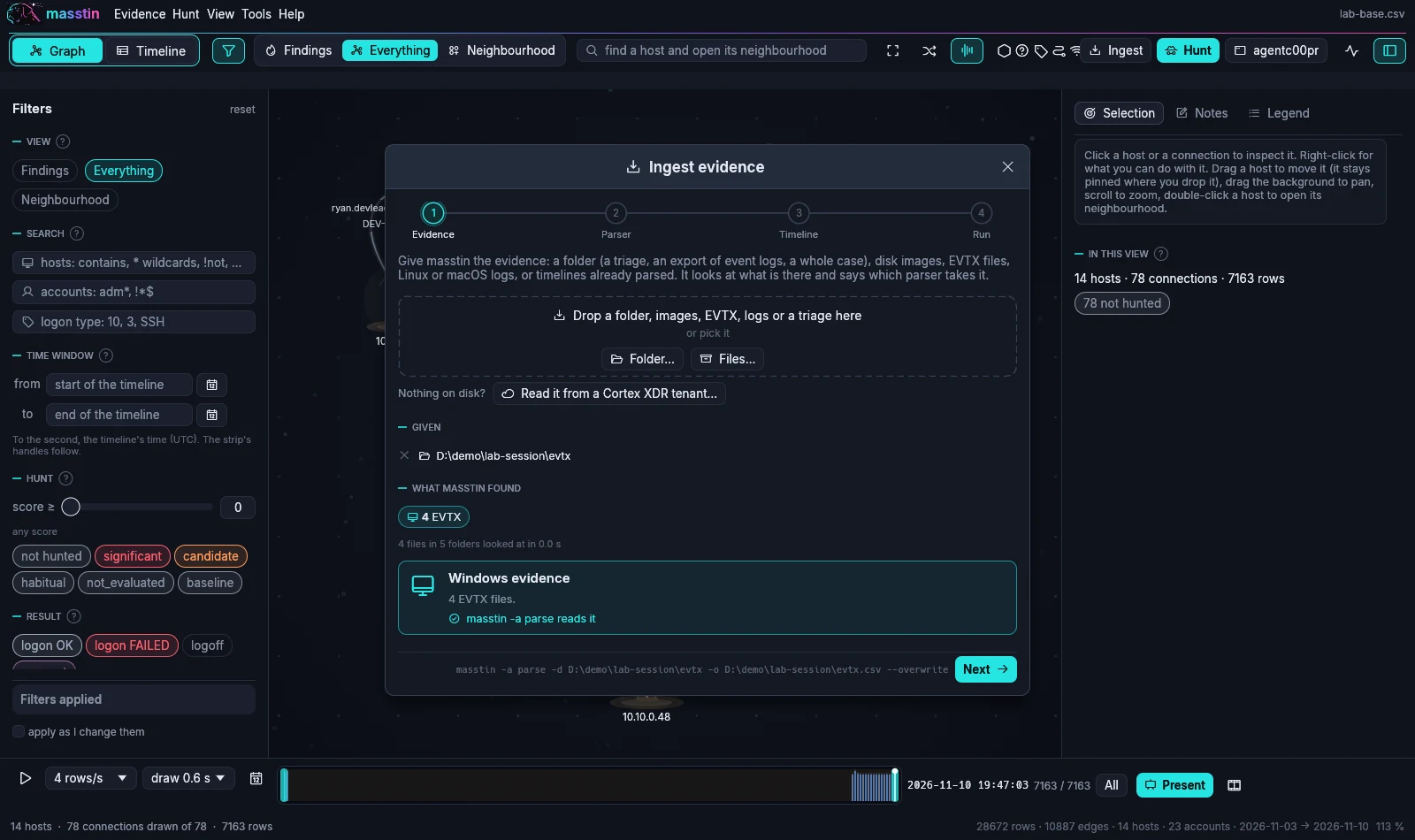
As soon as you give it something, masstin looks at it and tells you what it found. Here I gave it a folder with the logs of four lab machines and it answers: 4 EVTX, Windows evidence.
The look is bounded (twelve folder levels, sixty thousand entries, eight seconds) so that dropping a whole disk on it does not hang the window. What it recognises comes out as chips: EVTX, UAL databases, triage packages by kind (KAPE, Velociraptor, Cortex XDR, UAC), disk images, Linux logs by family, macOS logs, Winlogbeat JSON, timelines already made.
In case some of those names are new to you:
- EVTX are the files Windows keeps its event logs in.
- UAL (User Access Logging) is a database on Windows servers that notes who has accessed their services (its article).
- A triage package is a quick collection of the most useful parts of a machine (logs, registry and little else) without copying the whole disk. KAPE, Velociraptor and UAC are tools that make that collection, UAC on Linux and other Unix systems; Cortex XDR can make one too. How masstin recognises them is in triage detection.
- Winlogbeat is an agent that ships Windows events to Elastic, from where they are exported as JSON (its article).
And when it is not sure, it says so. If Windows and Linux evidence are mixed, or there are archives with a layout it does not know, the next step asks instead of assuming.
At the bottom, in grey, is the equivalent command line. It is there on every step.
Step 2: with what
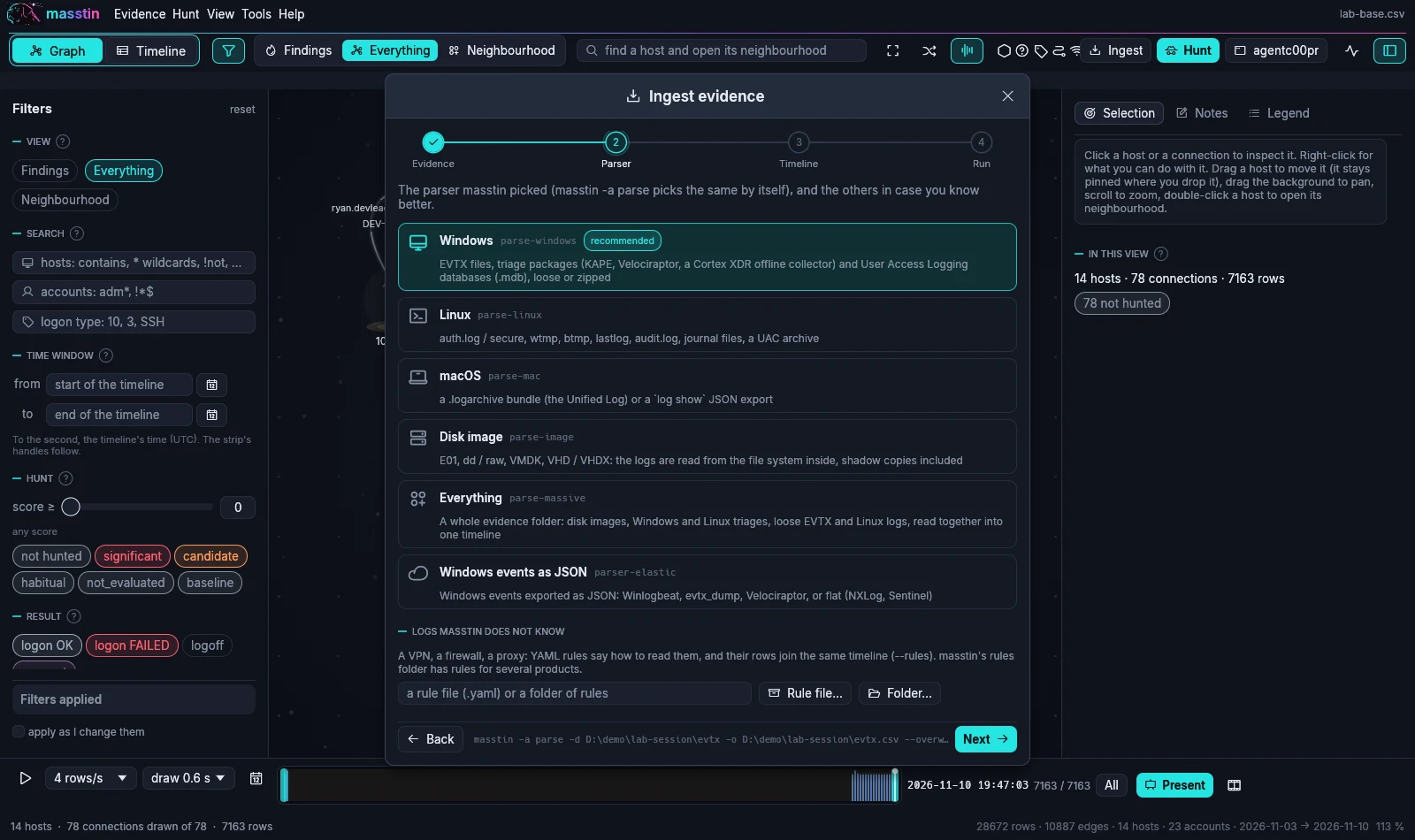
The six parsers, with the recommended one marked: Windows, Linux, macOS, disk image, “everything” (a mixed evidence folder) and Windows events as JSON. You can pick another if you know something masstin does not.
It shows in the command at the bottom. If you keep the recommended one, the command is masstin -a parse, the action that looks at the evidence and decides by itself. If you pick another by hand, the command names it (-a parse-windows, -a parse-linux…).
Below them there is a box many people miss: Logs masstin does not know. If you have logs from a VPN, a firewall or a proxy, this is where you give it a file of YAML rules and their rows go into the same timeline.
Step 3: where
The CSV that will be written (next to the evidence by default) and what to do with it at the end: open it here in place of what is open, add it to what is open, open it as a table or with the system’s CSV application.
If the evidence is on a share that must not be modified, this is the moment to change the output path.
If you already have a timeline open
In a case, evidence usually arrives in deliveries: two servers today, one more machine’s triage the day after tomorrow. When you ingest with a timeline already open, the wizard proposes adding the new evidence to that timeline instead of writing another one.
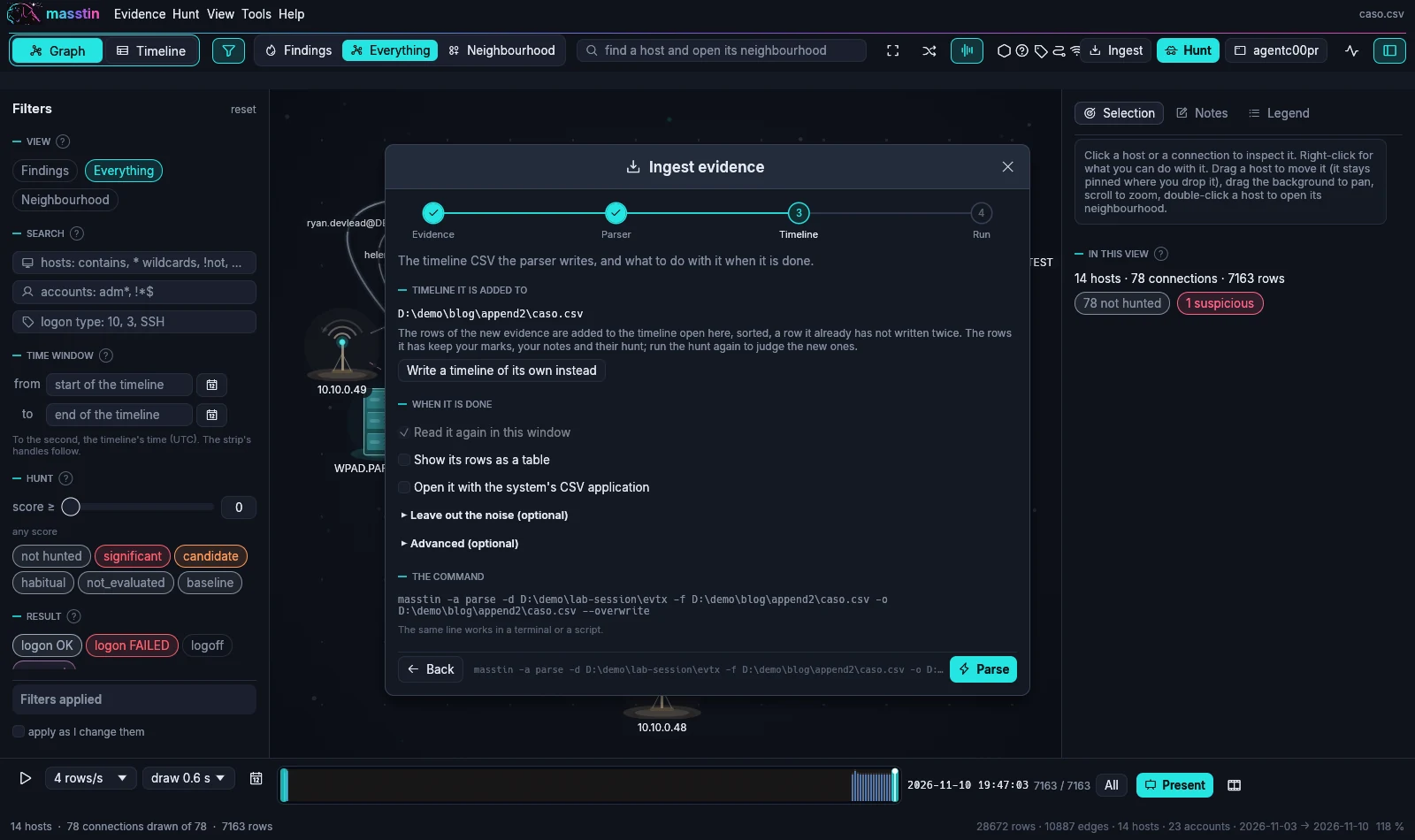
The new rows join the ones that were there, everything is sorted, and what was already there is not written twice. What matters is what does not change: the rows you already had keep your verdicts, your notes and their hunt. In the test behind the screenshot, a timeline of 28,672 rows with 23 marked went to 32,464, with the 23 marks in place.
The hunt has not seen the new rows. If the timeline carried one, it has to be run again: the Hunt button on the toolbar, or the Hunt menu. What the hunt is, is in its article.
If you would rather have two separate files, Write a timeline of its own instead goes back to the earlier behaviour.
Step 4: running
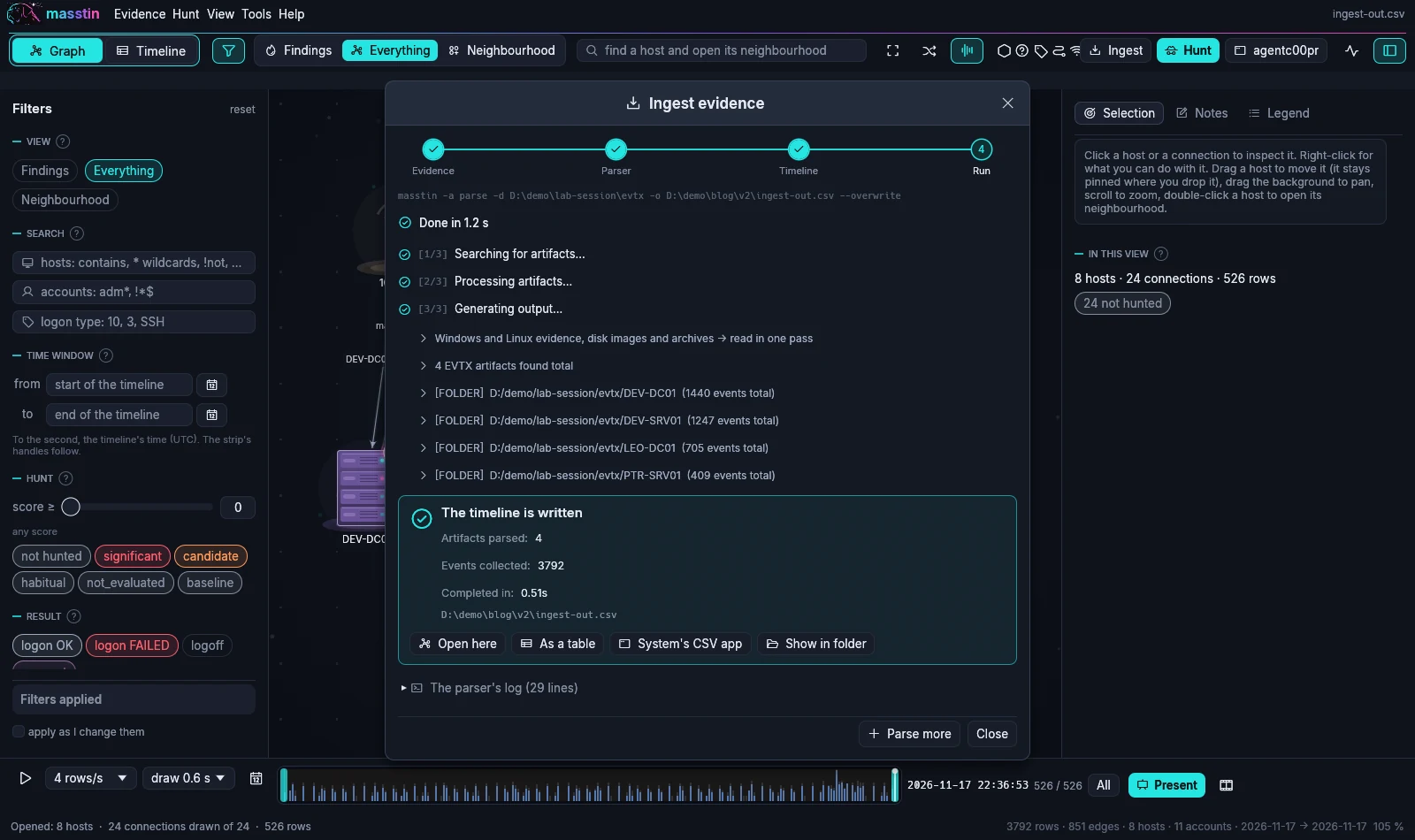
masstin runs as a separate process, and what it would say on the console is drawn here: the three phases (searching for the evidence, processing it and writing the timeline) with a tick as each ends, the progress bar with the file being read, the breakdown by folder and the summary. In this case, four artifacts, 3,792 events, half a second.
Stop kills the process. When it is done, you choose: open it here, see it as a table, open it with another program, show it in its folder or parse more.
Behind the wizard you can already see the graph of what it has just read.
The command line, always in sight
Every step shows at the bottom the exact command that will run:
masstin -a parse -d D:\demo\lab-session\evtx -o D:\demo\blog\v2\ingest-out.csv --overwrite
The paths are the ones of my test; yours will be different. It reads like this:
-a parseis the action: read evidence and write a timeline.-dis the evidence folder. For a single file you use-f.-ois the CSV that will be written.--overwriteallows writing over that CSV if it already exists. Without it, masstin stops before reading anything.
The wizard does nothing you could not do from a terminal. It is the same command. It is a way to learn the parameters without reading the help, and to copy the command into a script when next time it is forty folders instead of one.
If the evidence is not on disk
The first step has one more button: Read it from a Cortex XDR tenant…. It opens another wizard, which has its own article.
$ comments