Lateral Movement in Linux: Different Ecosystem, Same Principles
When we think about lateral movement, the conversation tends to center on Windows environments: EVTX, Kerberos, PsExec, RDP. But modern enterprise environments are hybrid, and attackers don’t stop at operating system boundaries. Linux servers — especially those running web services, databases, or container infrastructure — are frequent targets.
The primary lateral movement vector in Linux is SSH. Unlike Windows, where multiple remote access protocols exist (RDP, WMI, WinRM, SMB), nearly all remote access in Linux goes through SSH. This simplifies analysis but also demands knowing exactly where to look.
Masstin supports parsing Linux logs, integrating SSH activity into the same lateral movement timeline as Windows artifacts.
/var/log/secure and /var/log/auth.log
Depending on the distribution, authentication events are recorded in:
- /var/log/secure — Red Hat, CentOS, Fedora, Rocky Linux
- /var/log/auth.log — Debian, Ubuntu
Both contain the same information; only the path differs.
Successful SSH Logon
A successful SSH logon generates a line like this:
Apr 7 14:23:01 server sshd[12345]: Accepted publickey for admin from 10.0.1.50 port 52341 ssh2
| Field | Description |
|---|---|
| Timestamp | Event date and time |
| Hostname | Machine where the logon occurred |
| PID | Process ID of the sshd process managing the session |
| Method | publickey, password, keyboard-interactive, gssapi-with-mic (Kerberos) |
| User | Account that logged in |
| Source IP | IP address the connection came from |
| Source Port | Client’s ephemeral port |
Lateral movement indicators:
- Logon with
passwordfrom an internal IP that normally uses public key.- Direct
rootlogon (ifPermitRootLoginis enabled).- Logon from an unrecognized IP or outside business hours.
Failed SSH Logon
Apr  7 14:23:05 server sshd[12346]: Failed password for admin from 10.0.1.50 port 52342 ssh2
Apr  7 14:23:06 server sshd[12346]: Failed password for invalid user test from 10.0.1.50 port 52343 ssh2
| Pattern | Meaning |
|---|---|
Failed password for <user> |
Wrong password for existing user |
Failed password for invalid user <user> |
User does not exist on the system |
Connection closed by <IP> [preauth] |
Connection closed before authentication completed |
Too many authentication failures |
Multiple failed attempts — brute force |
Brute force detection: A burst of
Failed passwordentries followed by anAccepted passwordindicates successful brute force.
Masstin writes Failed <method> for invalid user lines as SSH_FAILED like any other failure, expands rsyslog’s message repeated N times: [ ... ] into N events, and records the pre-authentication touches ([preauth] closes, Did not receive identification string) as CONNECT rows with event_id SSH_PREAUTH.
Connection and Disconnection Events
Apr  7 14:23:01 server sshd[12345]: Connection from 10.0.1.50 port 52341
Apr  7 14:45:30 server sshd[12345]: Disconnected from user admin 10.0.1.50 port 52341
Apr  7 14:45:30 server sshd[12345]: pam_unix(sshd:session): session closed for user admin
These events allow you to calculate session duration and confirm the session was closed cleanly. Masstin pairs the session closed line with its Accepted line by sshd pid and writes one LOGOFF row (event_id LOGOUT) per closed session, with the pid in logon_id on both rows.
/var/log/messages
On Red Hat-based distributions, /var/log/messages records general system events, including some SSH and PAM-related entries that don’t appear in /var/log/secure.
| Entry Type | Example | Relevance |
|---|---|---|
| PAM session opened | pam_unix(sshd:session): session opened for user admin |
Confirms SSH session start |
| PAM session closed | pam_unix(sshd:session): session closed for user admin |
Confirms session end |
| systemd-logind | New session 42 of user admin |
Session registered by systemd |
| su/sudo | admin : TTY=pts/0 ; COMMAND=/bin/bash |
Post-logon privilege escalation |
/var/log/audit/audit.log
The Linux audit subsystem (auditd) provides a higher level of detail than standard logs. It’s especially useful when specific rules are configured to monitor SSH and remote access.
SSH Events in audit.log
type=USER_AUTH msg=audit(1712502181.123:4567): pid=12345 uid=0 auid=4294967295 ses=4294967295 msg='op=PAM:authentication grantors=pam_unix acct="admin" exe="/usr/sbin/sshd" hostname=10.0.1.50 addr=10.0.1.50 terminal=ssh res=success'
| Field | Description |
|---|---|
| type | USER_AUTH (authentication), USER_LOGIN (logon), USER_LOGOUT (logout) |
| pid | sshd process PID |
| acct | Authenticated account |
| exe | Executable that performed the authentication |
| hostname / addr | Source IP |
| res | success or failed |
Relevant audit record types for lateral movement:
| Audit Type | Description |
|---|---|
| USER_AUTH | PAM authentication result |
| USER_LOGIN | User logon completed |
| USER_LOGOUT | User logout |
| CRED_ACQ | Credentials acquired |
| CRED_DISP | Credentials released |
| USER_ACCT | Account verification (exists, not expired, etc.) |
audit.log advantage: Unlike
/var/log/secure, audit.log uses a structured format with precise Unix timestamps, making temporal correlation with other artifacts easier.
Masstin keeps USER_LOGIN only (one record per SSH connection; USER_AUTH is used as a fallback), drops the audit records of a connection the sshd log already covers — paired by pid — and takes session ends from USER_END.
utmp, wtmp, and btmp
These are binary files that record user session information. They cannot be read with cat — they require tools like who, w, last, lastb, and utmpdump.
utmp — Active Sessions
Location: /var/run/utmp
Records currently open sessions on the system. This is what the who and w commands query.
| Field | Description |
|---|---|
| ut_type | Record type (USER_PROCESS, LOGIN_PROCESS, etc.) |
| ut_user | Username |
| ut_line | Terminal (e.g., pts/0, tty1) |
| ut_host | Source IP or hostname (for remote sessions) |
| ut_time | Event timestamp |
Limitation: utmp only contains active sessions. When a session closes, it’s removed from utmp and written to wtmp.
wtmp — Session History
Location: /var/log/wtmp
Records all logon and logout sessions, including system reboots. It’s a cumulative historical record.
last -f /var/log/wtmp
Typical output:
admin    pts/0        10.0.1.50        Mon Apr  7 14:23 - 14:45  (00:22)
root     pts/1        10.0.1.100       Mon Apr  7 03:15 - 03:17  (00:02)
reboot   system boot  5.14.0-284.el9   Mon Apr  7 00:00
| Information | Forensic Relevance |
|---|---|
| User + source IP | Who connected and from where |
| Terminal | pts/* = remote session (SSH/telnet), tty* = local console |
| Duration | Session length — short sessions may be automated |
| Reboots | The reboot event indicates system boots |
Forensic analysis: Sessions by
rootfrom internal IPs at 3 AM lasting 2 minutes are highly suspicious.
btmp — Failed Logon Attempts
Location: /var/log/btmp
Records all failed logon attempts. It’s the Linux equivalent of Windows Event ID 4625.
lastb -f /var/log/btmp
Typical output:
admin    ssh:notty    10.0.1.50        Mon Apr  7 14:22 - 14:22  (00:00)
root     ssh:notty    192.168.1.200    Mon Apr  7 14:22 - 14:22  (00:00)
test     ssh:notty    10.0.1.50        Mon Apr  7 14:22 - 14:22  (00:00)
Attack detection:
- Multiple entries from the same IP with different users = password spraying.
- Multiple entries with the same user from the same IP = brute force.
- Attempts with users like
admin,test,root,oracle= dictionary attack.
lastlog — Last Logon Per User
Location: /var/log/lastlog
Records the date, time, and source of the last successful logon for each system user.
lastlog
Typical output:
Username         Port     From             Latest
root             pts/1    10.0.1.100       Mon Apr  7 03:15:22 +0100 2026
admin            pts/0    10.0.1.50        Mon Apr  7 14:23:01 +0100 2026
www-data                                   **Never logged in**
Forensic value: If a service account like
www-dataorpostgresshows a recent logon, it’s a strong indicator of compromise — these accounts normally don’t have interactive logons.
systemd-journald binary logs — the missing half on modern Linux
On Ubuntu 18+, Debian 11+, RHEL 8+ and any distribution where SSSD is enrolled in Active Directory, /var/log/auth.log is often nearly empty. That isn’t a retention or rotation issue — it’s by design. systemd-journald captures the stream and rsyslog / syslog-ng either don’t forward SSH events to the text file or aren’t installed at all. The real SSH record lives in the binary journal under:
/var/log/journal/<machine-id>/system.journal
/var/log/journal/<machine-id>/system@<sequence>.journal
/var/log/journal/<machine-id>/system@<sequence>.journal~   # archived (rotated)
Every .journal file is a binary database:
- Header + arena of
OBJECT_DATA(fields likeMESSAGE=,_COMM=sshd,_HOSTNAME=,_UID=0) andOBJECT_ENTRY(a log entry pointing to a set of data objects). - Compact mode (newer
journalctl) uses 4-byte offsets instead of 8-byte + hash for a smaller footprint. - zstd-compressed payloads for large
MESSAGEfields (default in Ubuntu 22+).
The fields that matter for lateral-movement forensics:
| Field | What it contains |
|---|---|
_COMM |
Command name — sshd, sudo, systemd, etc. Filter on sshd to cut noise fast. |
SYSLOG_IDENTIFIER |
Syslog-style identifier, usually same as _COMM for simple services. |
MESSAGE |
The actual log line — e.g. Accepted publickey for ubuntu from 192.168.10.1 port 41764 ssh2 |
_HOSTNAME |
Host that emitted the event. Useful when you’ve aggregated journals from several machines. |
_PID |
sshd PID of the session. |
__REALTIME_TIMESTAMP |
Microseconds since Unix epoch — always present, always accurate. |
The beauty of this is that the log line inside MESSAGE is textually identical to what you’d see in auth.log on a classic syslog setup:
Accepted publickey for ubuntu from 192.168.10.1 port 41764 ssh2: RSA SHA256:/uCIzrTZ...
Failed password for invalid user test from 203.0.113.9 port 43112 ssh2
So the same regexes that match /var/log/auth.log also match MESSAGE from .journal files — you just need a reader that can walk the binary format and hand you the MESSAGE string.
Why this matters on domain-joined Linux
On an Ubuntu server joined to an Active Directory domain via SSSD (realmd join, adcli…), a typical analyst-facing picture looks like this:
$ cat /var/log/auth.log | grep sshd
(empty — or just a handful of systemd-logind watching seat messages)

$ sudo journalctl -u ssh --since "-30d" | grep Accepted
Apr 12 18:20:44 LNX01-oldtown sshd[2134]: Accepted publickey for ubuntu from 192.168.10.1 port 41764 ssh2
Apr 12 18:20:53 LNX01-oldtown sshd[2141]: Accepted publickey for ubuntu from 192.168.10.1 port 57200 ssh2
...
If you carve /var/log/auth.log from an ext4 forensic image and parse it with a classic tool, you’ll conclude “nothing happened” — and miss 100% of the lateral-movement evidence. Any DFIR pipeline that ignores the binary journal on modern Linux has a blind spot the size of the entire SSH footprint.
Masstin handles this natively: it reads .journal and .journal~ files directly, decodes compact mode and zstd-compressed data objects, filters on _COMM=sshd (and sshd-session, the per-connection process of OpenSSH 9.8+) and applies the same Accepted (password|publickey) / Failed password regexes used on text logs. The implementation is pure Rust — no libsystemd binding — so it also works when you’re analysing Linux evidence from a Windows DFIR workstation.
Linux Artifact Summary
| Artifact | Location | Format | What It Records | Reading Tool |
|---|---|---|---|---|
| auth.log / secure | /var/log/auth.log (Debian/Ubuntu) or /var/log/secure (RHEL) |
Text | SSH authentication (successes, failures, connections) — often empty on SSSD + AD hosts | cat, grep |
| messages | /var/log/messages |
Text | System events, PAM, systemd | cat, grep |
| audit.log | /var/log/audit/audit.log |
Structured text | USER_LOGIN / USER_AUTH / USER_START — detailed authentication auditing, primary SSH signal on Ubuntu + SSSD |
ausearch, aureport |
| systemd-journald | /var/log/journal/<machine-id>/*.journal[~] |
Binary (zstd-compressed) | All sshd events on modern distros (Ubuntu 18+, RHEL 8+, Debian 11+) — the real SSH record when auth.log is empty |
journalctl --file, masstin |
| utmp | /var/run/utmp |
Binary | Active sessions | who, w |
| wtmp | /var/log/wtmp |
Binary | Logon/logout history | last |
| btmp | /var/log/btmp |
Binary | Failed logons | lastb |
| lastlog | /var/log/lastlog |
Binary | Last logon per user | lastlog |
How Masstin Parses Linux Artifacts
Masstin supports parsing Linux authentication logs — text files (/var/log/auth.log, /var/log/secure, /var/log/audit/audit.log), binary accounting (utmp/wtmp/btmp/lastlog, rotated wtmp-YYYYMMDD / btmp-YYYYMMDD[.gz] included), and the systemd-journald binary logs under /var/log/journal/ — and normalizes every event into the same CSV format used for Windows artifacts.
# Directory with extracted logs
masstin -a parse-linux -d /evidence/var/log/ -o timeline.csv

# Compressed forensic package (auto-extracts, supports passwords)
masstin -a parse-linux -d /evidence/triage_package/ -o timeline.csv
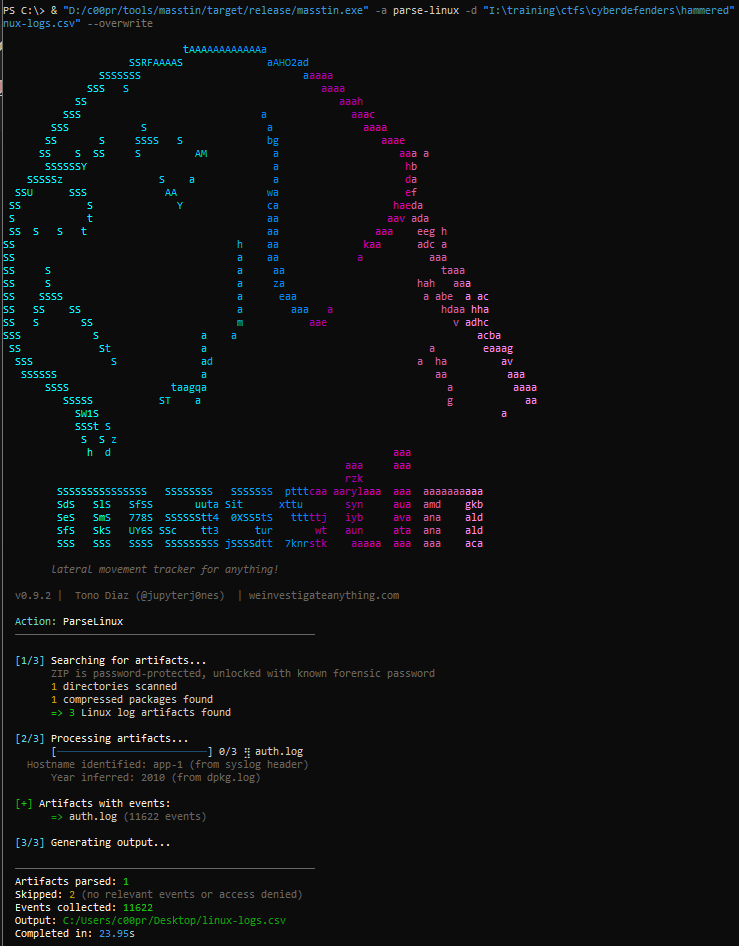
Masstin transparently reports all inferences: hostname identification (from /etc/hostname, dmesg, or the syslog header), year inference (from the logrotate suffix of rotated files, dpkg.log, wtmp, or file modification date), the time zone used to convert RFC3164 timestamps to UTC, and password-protected ZIP extraction.
Every closed session yields a LOGOFF row (event_id LOGOUT) paired with its login by sshd pid — from wtmp (DEAD_PROCESS), pam session closed, journald or auditd USER_END — and logon_id carries that pid on every Linux row that has one. logon_type is SSH on every Linux row.
This enables creating lateral movement timelines that cross operating system boundaries: an attacker moving from a Windows workstation to a Linux server via SSH will appear in the same timeline as their RDP or SMB movements.
Distribution compatibility
Linux logs differ by distribution, but masstin handles both transparently:
| Distribution | Primary source | Format |
|---|---|---|
| Debian, Ubuntu (classic rsyslog) | /var/log/auth.log |
RFC3164 (legacy syslog) |
| RHEL, CentOS, Fedora, Rocky | /var/log/secure |
RFC3164 (legacy syslog) |
| Any (structured rsyslog export) | Varies | RFC5424 |
Debian 13 / rsyslog RSYSLOG_FileFormat |
/var/log/auth.log |
ISO timestamps (2026-09-25T10:11:12.123456+02:00 host sshd[1]: ...) — the stamp’s own offset is used |
| Ubuntu 18+ / Debian 11+ / RHEL 8+ (stock, no rsyslog) | /var/log/journal/<id>/*.journal[~] |
Binary (zstd-compressed) — parsed directly |
| SSSD + Active Directory (Ubuntu 22, RHEL 9) | /var/log/journal/ + /var/log/audit/audit.log |
Binary + structured text |
Timestamp formats
RFC3164 (most common in practice) uses timestamps without year:
Mar 16 08:25:22 app-1 sshd[4894]: Accepted password for user3 from 192.168.126.1 port 61474 ssh2
Since RFC3164 has no year, masstin infers it automatically from sibling files in the same directory. The priority order is: dpkg.log (contains full YYYY-MM-DD dates), wtmp (epoch timestamps with year), file modification date, and current year as last resort. Masstin reports what it inferred and from which source, so the analyst always knows the basis for the timestamps. Rotated files (secure-20260301, auth.log.1.gz) take the year from their logrotate suffix, and a December line in the current, unrotated file is dated the previous year when the inferred year would place it after the file’s last write. RFC3164 stamps are also the host’s local wall-clock time: masstin resolves the zone from /etc/timezone, /etc/sysconfig/clock or /etc/localtime and converts them to UTC so they line up with wtmp, audit and journald.
The same applies to hostname identification: masstin checks /etc/hostname, dmesg, /etc/hosts, and falls back to extracting the hostname from the syslog header itself. All inferences are reported transparently in the output.
RFC5424 (structured syslog) includes full timestamps with timezone:
<38>1 2024-03-16T08:25:22+00:00 app-1 sshd 4894 - - Accepted password for user3 from 192.168.126.1 port 61474 ssh2
This format is used when systemd journal is exported or rsyslog is configured with structured output.
Compressed triage support
Like parse-windows, parse-linux can process compressed triage packages directly. It recursively decompresses ZIP archives — including password-protected ones using common forensic passwords (cyberdefenders.org, infected, malware, password). When a password-protected archive is detected and unlocked, masstin notifies the user. tar / tar.gz / tgz archives are walked too (streamed, only the log files are unpacked), nested in any combination (zip → tar.gz, tar.gz → tar.gz), and UAC (Unix-like Artifacts Collector) collections are recognised by their uac.log + [root]/ layout or their uac-<host>-<os>-<timestamp> filename and labelled [TRIAGE: UAC], with the hostname taken from the filename or the collected /etc/hostname.
Conclusion
In hybrid environments, ignoring Linux artifacts leaves critical blind spots in your investigation. SSH authentication logs, binary utmp/wtmp/btmp records, and audit.log provide the same forensic richness as Windows EVTX files — you just need to know where to look.
Masstin unifies these artifacts with Windows ones to give you a complete view of lateral movement across your entire infrastructure.
$ comments